Cu-CO bond length
In Non-contact AFM, the tip-CO interaction is simulated by two Cu atoms followed by CO (Cu-Cu-C-O). We will take a simple example where we first relax the Cu-Cu atoms and the CO molecule. Then we will bring them together at certain distances, to finally compute the lowest energy distance.
#. Setting up the Runner
First step is to setup and start a runner. This will look for jobs to be submitted, and will submit them. This is also responsible for checking the status of the run, and update the status as failed or done, accordingly.
For the demonstration, a simple terminal runner is defined from
TerminalRunner:
>>> from runner import TerminalRunner

>>> runner = TerminalRunner('terminal:myRunner',
>>>                         'database.db',
>>>                         max_jobs=5,
>>>                         cycle_time=5,
>>>                         keep_run=False,
>>>                         run_folder='./')
>>> runner.to_database()
To start the runner we can, on the machine the run takes place, execute:
>>> from runner import TerminalRunner

>>> runner = TerminalRunner.from_database('terminal:myRunner',
...                                       'database.db')
>>> runner.spool()
or can be run via Command Line Interface (CLI) tools:
$ runner list-runners -db database.db
                      Runner name                         Status
 ===============================================================
 1              terminal:myRunner                    not running
$ runner start terminal:myRunner -db database.db
...
Note
Screen can be used to run a shell session in the background. This can safely run the runner without the concern of terminating the session on logout.
#. Defining the workflow
Setting up the RunnerData
A RunnerData to define the relaxation run can be defined. The python run file
follows the file format. Following the format, we can make the
BFGS function file as:
# BFGS.py

from ase.optimize import BFGS


def main(atoms_list, fmax=0.05):
    """Does BFGS relaxations of atoms

    Args:
        atoms_list (list): list of atoms, as given by runner
    Returns:
        atoms object: relaxed atoms object"""
    atoms = atoms_list[0]
    opt = BFGS(atoms)
    opt.run(fmax=fmax)

    return atoms
This can be included with the RunnerData as:
>>> from runner import RunnerData
>>> # initialise template
>>> bfgs_rundata = RunnerData('BFGS')
>>> # add relevant files
>>> bfgs_rundata.add_file('BFGS.py')
>>> # add tasks to be performed
>>> bfgs_rundata.append_tasks('python', 'BFGS.py', {'fmax': 0.05})
Similarily, we can add RunnerData for interaction energy and finding
minimum energy configuration.
# interaction_energy.py


def main(atoms_list, d=1):
    """Combines atoms with a distance d

    Args:
        atoms_list (list): list of atoms, as given by runner

    Returns:
        atoms object: combined atoms with calculated energies"""

    atoms0 = atoms_list[1]

    atoms0.positions[:, 2] += d + 1

    atoms0 += atoms_list[2]

    # making sure new energies are used in the system with updated atoms
    atoms0.get_potential_energy()

    # adding key_value_pairs for column search in database
    # these are updated to the old key_value_pairs already in database
    atoms0.info["key_value_pairs"] = {"d": d}

    return atoms0
# min_energy.py


def main(atoms_list):
    """Returns atoms with the lowest energy

    Args:
        atoms_list (list): list of atoms, as given by runner

    Returns:
        atoms object: atoms with lowest calculated energies"""
    import numpy as np

    en_list = [atoms.get_potential_energy() for atoms in atoms_list[1:]]

    indx = np.argmin(en_list)

    return atoms_list[indx + 1]
These can be included with the RunnerData as:
>>> # initialise template
>>> int_rundata = RunnerData('interaction_energy')
>>> # add the run function file
>>> int_rundata.add_file('interaction_energy.py')
>>> # add python task with parameter
>>> int_rundata.append_tasks('python', 'interaction_energy.py', {'d': 1})

>>> # template runnerdata
>>> min_rundata = RunnerData('min_energy')
>>> # adding python function file
>>> min_rundata.add_file('min_energy.py')
>>> # adding python task
>>> min_rundata.append_tasks('python', 'min_energy.py')
Setting up the database
Then, we need to add the Cu-Cu and CO molecules into the database with appropriate calculators and RunnerData. We’ll use ase.calculators.EMT for simple demonstration:
>>> from ase import Atoms
>>> from ase.calculators.emt import EMT
>>> from ase.constraints import FixAtoms
>>> import ase.db as db

>>> # setting up the database
>>> # CO
>>> co = Atoms('CO', positions=[[0, 0, 0], [0, 0, 1]])
>>> # fixing C atom
>>> cons = FixAtoms(indices=[0])
>>> co.set_constraint(cons)
>>> # adding calculator
>>> calc = EMT()
>>> co.set_calculator(calc)
>>> # Cu-Cu
>>> cu = Atoms('Cu2', positions=[[0, 0, 0], [0, 0, 1]])
>>> # fixing one Cu atom
>>> cons = FixAtoms(indices=[1])
>>> cu.set_constraint(cons)
>>> # adding calculator
>>> calc = EMT()
>>> cu.set_calculator(calc)

>>> # now these can be added to the database
>>> with db.connect('database.db') as fdb:
...     id_co = fdb.write(co)
...     id_cu = fdb.write(cu)
>>> # with their RunnerData
>>> bfgs_rundata.to_db('database.db', [id_co, id_cu])
>>> # adding default column for database GUI
>>> with db.connect('database.db') as fdb:
...     fdb.metadata = {'default_columns': ['id', 'user', 'formula',
...                                         'status', 'd', 'energy']}
#. Bond distance
To calculate the bond distance, we will utilise the parameters feature in the
tasks. Further, by defining parents of the row, we can inherit atoms object from the parent row,
and the Runner will wait for the parent runs to finish before submitting
this run.
Setting up the same database
Atoms row for each new distance calculation has to be defined first. However,
these atoms row are filled with empty Atoms object:
>>> # make database rows for new systems
>>> data_list = [x for x in range(1, 10)]
>>> ids = [None for _ in data_list]
>>> for i, dist in enumerate(data_list):
>>>     with db.connect('database.db') as fdb:
>>>         ids[i] = fdb.write(Atoms())

>>> # send RunnerData to the database with updated parameters
>>> int_rundata.parents = [id_co, id_cu]
>>> for i, dist in enumerate(data_list):
>>>     int_rundata.tasks[0][2]['d'] = dist
>>>     int_rundata.to_db('database.db', ids[i])
#. Minimum energy configuration
- Next, the Atoms row to store the minimum engergy configuration can
be added to the database as:
>>> # make database rows for new system
>>> with db.connect('database.db') as fdb:
>>>     id_min = fdb.write(Atoms())
>>> # send RunnerData to the database with updated parameters
>>> min_rundata.parents = ids
>>> min_rundata.to_db('database.db', id_min)
#. Submitting the rows
To mark the rows for submission by Runner, the status of
the row is changed:
>>> from runner.utils import submit
>>> for i in [id_co, id_cu] + ids + [id_min]:
...     submit(i, 'database.db', 'terminal:myRunner')
or can be run via Command Line Interface (CLI) tools.
When the rows are submited, the Runner starts managing all the runs
accordingly.
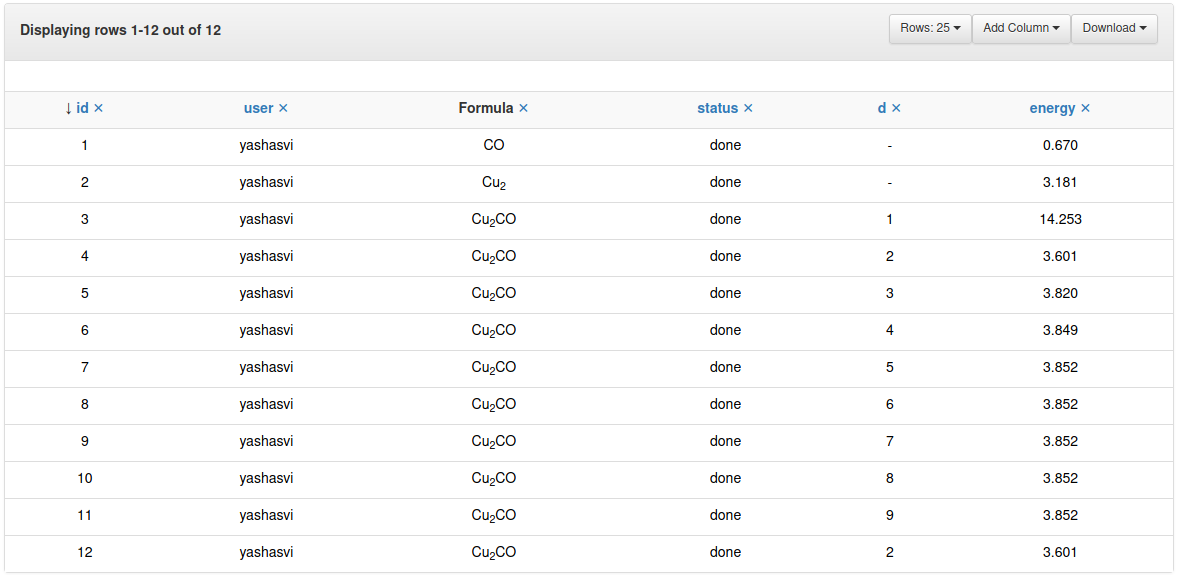
Snapshot of ASE database browser GUI after completing all runs
#. Graphical visualisation of the workflow
We can visualise the graph of the workflow made to get the last row
, while the Runner runs the rows:
>>> from runner.utils import get_graphical_status
>>> get_graphical_status('graph.png', id_min, 'database.db',
...                      add_tasks=True)
or can be run via Command Line Interface (CLI) tools.
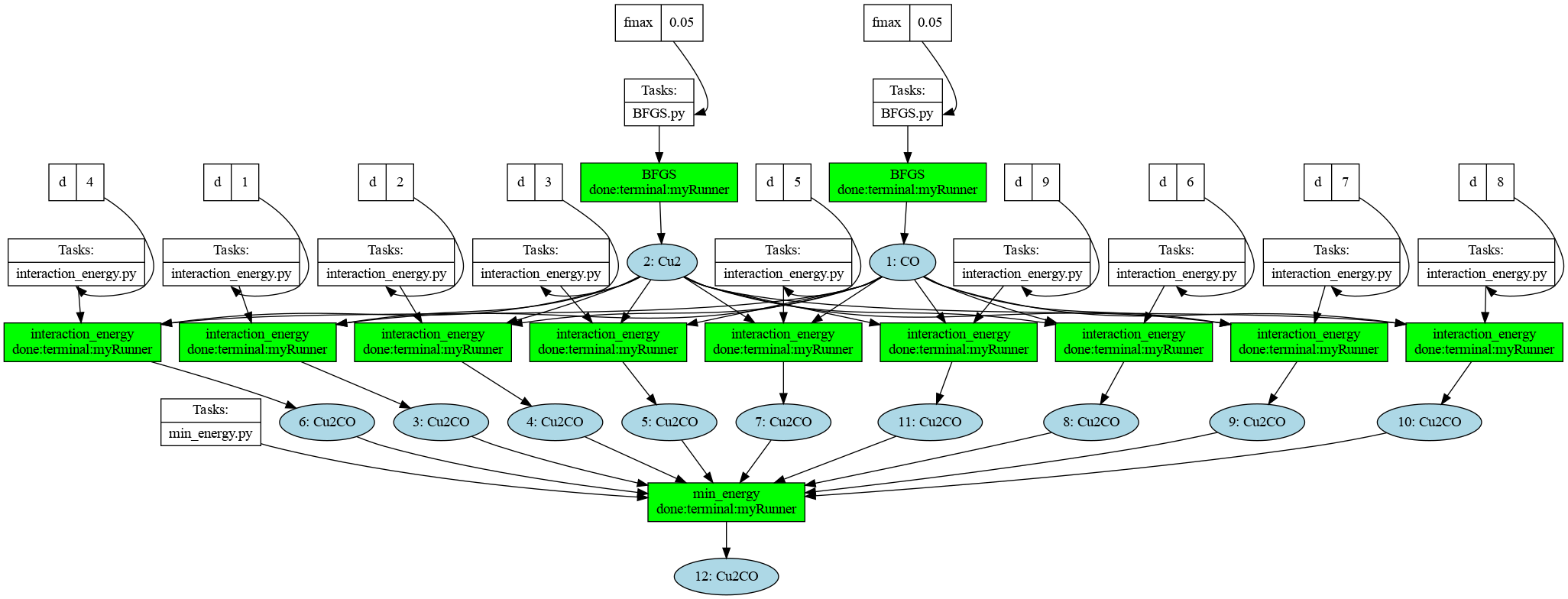
Snapshot of the graph of the entire workflow needed to generate the last row, after completing all runs.
Note
Graphviz needs to be properly installed, for the graph to be generated.